By Portrait Gift Team | August 3, 2026 | 6 min read
Most families never get the one good group photo. Here is the practical workflow for turning separate photos of each person into a single custom family portrait — which photos to pick, how to keep faces consistent, and the pitfalls that ruin combined portraits.
Somebody moved away, somebody blinked, the dog left the frame, and the last time everyone stood in front of one camera was a wedding two haircuts ago. If that describes your camera roll, a custom family portrait from separate photos solves the actual problem: you do not need one good group photo, you need one decent photo of each person. This guide walks through how the compositing works, the workflow start to finish, the photo choices that make separate sources look like one scene, and the pitfalls that most often ruin the result.
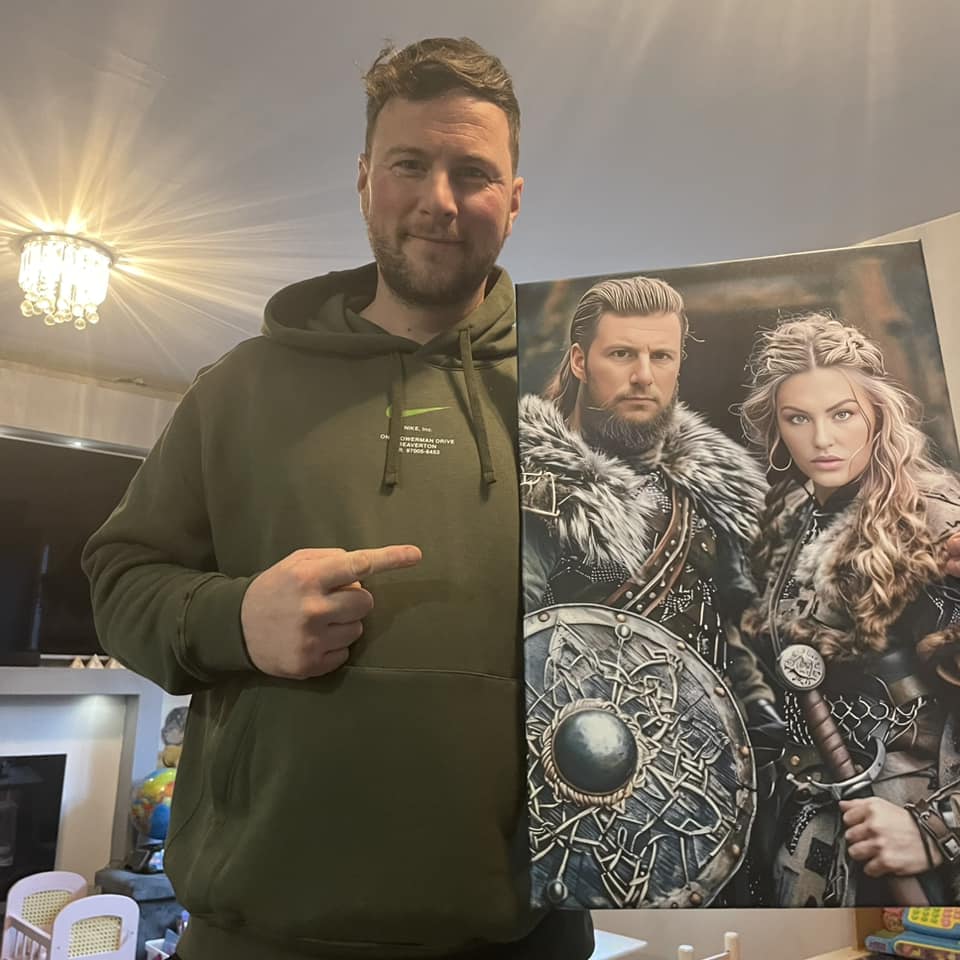
Instead of retouching an existing group shot, the artwork is built the other way around: a scene is chosen first, and each family member is redrawn into it from their own source photo. Because every face is rendered fresh in the style of the scene — the same palette, the same light, the same painterly treatment — the finished piece looks like everyone posed together, even though the sources were a phone selfie, a school photo, and a scanned print from 2009. The scene can be a classic family setting or something with more personality: a royal court, a renaissance study, a victorian drawing room, a viking encampment, or a western wanted poster for the family that runs on jokes.
The practical consequence is that geography and scheduling stop mattering. The daughter overseas, the grandparents two states away, and the new baby nobody has met yet can all stand in the same frame without anyone booking a flight.
The whole process is shorter than most people expect, and only the first two steps involve any real work:
The artwork's style does the heavy lifting of unifying the scene, but the source photos decide how natural the result feels. A few choices matter far more than the rest:
Match the angles. Faces photographed straight-on compose together naturally; one face shot from sharply below or above will sit oddly against the rest no matter how well it is drawn. Front-facing, eye-level photos for everyone is the single most effective consistency rule.
Keep lighting comparable. The photos do not need identical conditions, but avoid extremes: one face lit by harsh noon sun and another by a dim restaurant candle give the artist contradictory information about shadow and skin tone. Soft, even daylight — the light near a window — is the safe default for any reshoot.
Keep faces unobstructed and unfiltered. No sunglasses, no beauty filters, no hat brims shading the eyes. Filters are especially sneaky because they subtly reshape features, and the portrait will faithfully reproduce the filter's face instead of the real one.
Use recent photos — deliberately. Mixing eras works when it is a choice, like grandparents drawn from their favorite decade beside grandchildren from last month. It fails when it is an accident, like one sibling represented by a photo fifteen years staler than everyone else's. Decide the timeline on purpose. The full checklist for vetting each picture is in our guide to choose the best photo for a custom portrait.
Four mistakes account for most disappointing composites. First, cropping faces out of group photos: a face that occupies a small corner of a group shot simply does not carry enough pixels to redraw well, so find a photo where the person fills the frame. Second, over-crowding the scene — a portrait with fourteen people and three pets becomes a crowd, not a family; keep the cast to the people who define this chapter, and let the canvas breathe. Third, treating the pet as an afterthought and submitting a blurry action shot from across the yard; pets follow the same one-clear-photo rule as people, ideally taken at their eye level. Fourth, skipping the preview check because the deadline is close — the preview exists precisely so a weak source photo can be swapped before printing, and thirty seconds of scrutiny per face is cheaper than living with a portrait where one relative looks like their cousin.
Composing from separate photos also means the portrait can include someone no camera can photograph again — a grandparent, a parent, a sibling — drawn from an old print into the same scene as the living family. The mechanics are identical to everything above, but the photo selection and the emotional decisions deserve more care than this guide gives them, so we wrote a dedicated one: adding a deceased loved one to a family portrait covers choosing among the few photos you have, placement in the scene, and how families handle the reveal.
The group photo you have been failing to organize for years is not going to happen, and it turns out it never needed to. One clear photo per person, one agreed-upon scene, one person collecting the pictures, and a free preview to verify every face — that is the entire path from a scattered camera roll to a single portrait on the wall that looks like the family finally stood together. Because eventually, in one frame, they did.
Yes. Each person is redrawn from their own source photo and composed into one shared scene, so the photos never need to come from the same day, place, or camera. A phone selfie of your sister in Seattle, a school photo of your nephew, and a ten-year-old shot of your parents can all become one coherent portrait. The requirement sits with each individual photo — clear, front-facing, decently lit — not with the collection matching.
One clear photo per person is enough, and one strong photo beats five mediocre ones. Sending several photos of the same person does not average into a better likeness; the artwork follows the best single source. Spend your effort upgrading the weakest photo in the set instead of adding more. If someone’s only available picture is blurry or shadowed, a thirty-second phone photo taken by a window will outperform it every time.
Yes — dogs, cats, and other pets can be composed into the family scene from their own separate photos, which is usually the only way it happens, since pets are even harder to hold still for a group shot than toddlers. Use the same standard as for people: one sharp photo with the face clearly visible, taken at the pet’s eye level rather than from above, in daylight if possible. Dark fur especially needs good light to keep detail.
Yes, and for many families that is the whole point of composing from separate photos — the portrait can include someone no camera can photograph again. Any clear photo works as a source, including scanned prints from decades ago. The process is the same as for every other family member, though photo selection carries more weight when there are only a few pictures to choose from, so pick the one where they look most like the person you remember.